New in 1.4.6
All in one place
Accessible puzzle games for iPhone and iPad
Every option sits in one card in Settings, the same for all 19 games.
- Auto, On or Off. On Auto, colours and motion follow your iPhone. On or Off decides for Beasties alone.
- VoiceOver on boards. Four choices for how game boards are read aloud. The example above them changes as you pick.
- Always at hand. With VoiceOver on, this card moves to the top of Settings. The gear button in every game opens it too.
The VoiceOver choices are there because a blind player told us what would make the boards easier to play. Thank you for that.
New in 1.4.6
VoiceOver
VoiceOver games: all 19 puzzles, read aloud
Every game, the menus and the Frostfest event work with VoiceOver. Each cell tells you where it is and what is on it, in the order and length you like.
- Read position. First, Last or Off: the row and column come before what is on the cell, after it, or not at all.
- Wording. From “Row 1, column 1, Yellow monster” down to “1, 1, Yellow”.
- Tips on cells. Short tips on what a double tap does. Switch them off once you know the game.
New in 1.4.6
After every move
Hear what each move did
After a move, VoiceOver tells you what changed. If you would rather ask yourself, switch the results off.
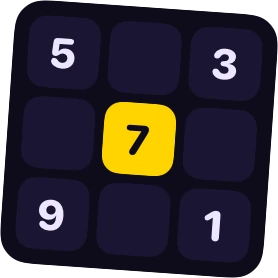
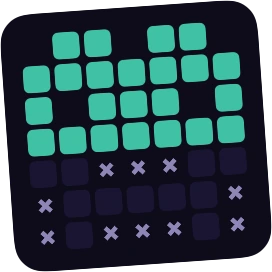
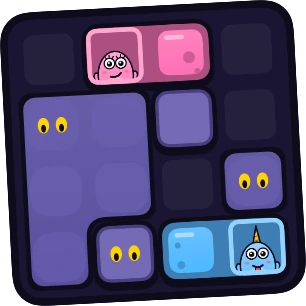
- Progress. A right digit, a finished row, a goal that is done.
- Mistakes. What went wrong, together with the right answer.
- Cleared lines. In Block Munch you hear how many lines went and how much fog is left.
New in 1.4.6
Actions
Play right on the cell
Swipe up or down on a cell to hear its actions, then double-tap. No trip to a keypad or a toolbar.
- Digits on the cell. In Sudoku, Cage Sums and Number Cross you pick the digit right on the cell.
- Read a whole line. Hear a row, a column, a den or a route in one go.
- One step less. Clear a pair in Number Pairs, put a piece on its best spot in Block Munch, or use the second tool without switching.
New in 1.4.6
Rotor
Jump straight to what you need
Turn the VoiceOver rotor to jump to empty cells, mistakes or the next row instead of swiping cell by cell.
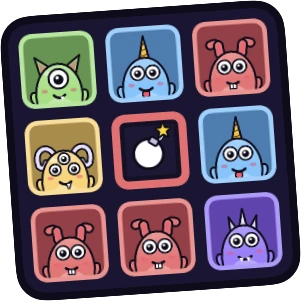 Triple Trouble
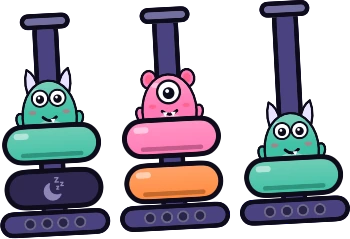 Stacks
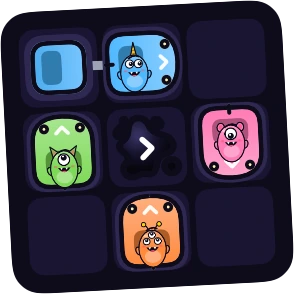 Bumper Cars
 Laundry Day
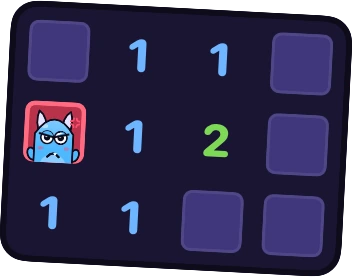 Mines
- On the board. Empty cells, mistakes, rows, boxes and cages, depending on the game.
- On the home screen. The Games rotor takes you to any of the 19 games.
- No dragging. In Hive Stacks and Block Munch you pick a piece first, then its place.
- Win or lose. The result card takes the VoiceOver focus, so you hear it straight away.
New in 1.4.6
Frostfest
The winter event, read aloud
Cards, packs and the album of the Frostfest work with VoiceOver like the rest of the app.
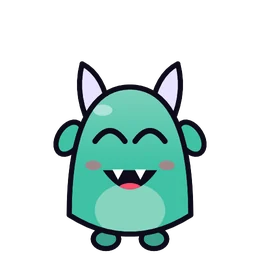
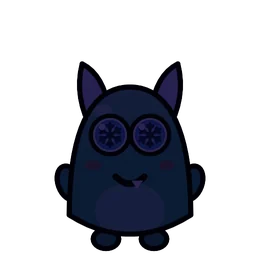


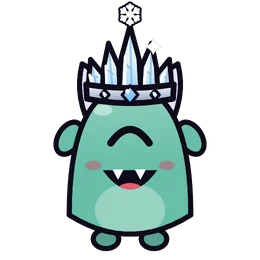
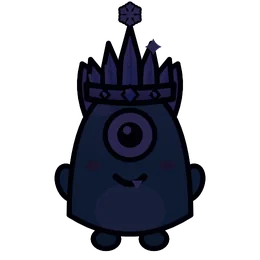
- Name and rarity. Every card says what it is, how rare it is and whether you have it yet.
- Every pull. Each card you turn over is announced. Reveal all reads them in one go.
- Time to read. With VoiceOver on, info bubbles stay open longer.
Colours
Colour-blind friendly: a symbol for every colour
Switch on Differentiate colours and every family colour gets its own symbol. Colour-blind players can tell the monsters apart by shape.
- Ten symbols. Circle, heart, triangle, diamond, plus, star, square, bolt, moon and drop. Each colour keeps its symbol in every game.
- Bolder socks. In Laundry Day the socks get bolder patterns, so pairs stand out without colour.
- Auto. Follows Differentiate Without Colour on your iPhone.
Motion
Calm motion for motion-sensitive players
Reduce motion makes the games quieter to look at, without taking anything away from the puzzles.
- Calmer. Monsters stop hopping and wandering, stickers fade in instead of popping up.
- Still wins. Victory effects stay still, with fewer flying shards and no moving monster parts.
- Auto. Follows Reduce Motion on your iPhone.
Text and contrast
Large text and stronger contrast
Beasties follows the text size of your iPhone and its Increase Contrast and Reduce Transparency settings.
- Dynamic Type. Text grows with the text size of your iPhone, up to XXXL. Big titles grow a little less, just like in iOS.
- Increase Contrast. Secondary text gets brighter.
- Reduce Transparency. No pattern behind text, and solid panels instead of see-through ones.
Your pace
No timers, no rush
Nothing in Beasties is timed. Listen to a board for as long as you need, and set sound and vibration the way you like them.
- No clock. No countdowns, no energy, no waiting. Take as long as a level needs.
- Sound your way. Sound effects and music each have their own volume, and can play in silent mode too.
- Vibration. Switch vibration on or off on its own.
More on why Beasties plays calmly: offline and without ads. All of this is free, no Pro needed.
FAQ
Accessibility questions
Does Beasties work with VoiceOver?
Yes. From version 1.4.6, all 19 games, the menus and the Frostfest event work with VoiceOver, with actions right on the cells and rotors to jump around the board.
Can blind players play the games?
New in 1.4.6
Yes. Every cell is read aloud, every move gets a short result, and the win or lose card takes the focus. The VoiceOver settings grew out of a blind player’s feedback.
How do I make VoiceOver say less?
New in 1.4.6
Open Settings and go to VoiceOver on boards. Set Wording to Shortest, Read position to Last or Off, and switch Tips on cells off.
Do I have to drag pieces?
New in 1.4.6
No. Every game works with taps or VoiceOver actions. In Hive Stacks and Block Munch you pick a piece first, then its place.
Is Beasties good for colour-blind players?
Yes. Switch on Differentiate colours and every colour gets its own symbol, the same one in every game. On Auto it follows your iPhone.
Can I turn off the animations?
Yes. Reduce motion calms the effects. On Auto it follows Reduce Motion on your iPhone, or you switch it on for Beasties alone.
Can I make the text bigger?
Yes. Beasties follows the text size of your iPhone, up to XXXL.
Is there a time limit?
No. No level is timed and nothing counts down.
Where are the accessibility settings?
New in 1.4.6
In Settings, in the Accessibility card. With VoiceOver on it sits at the top, and the gear button in every game opens Settings too.
Do the accessibility features cost anything?
No. Every one of them is free, with or without Pro.